

Submit a Panopto Video to an Assignment
Authenticate Your Panopto Account
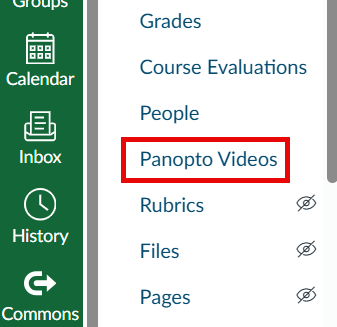
Before you can submit a Panopto video to a Canvas activity, you’ll need to authenticate your Panopto account. You can do this by clicking on Panopto Videos in the Canvas course navigation menu:
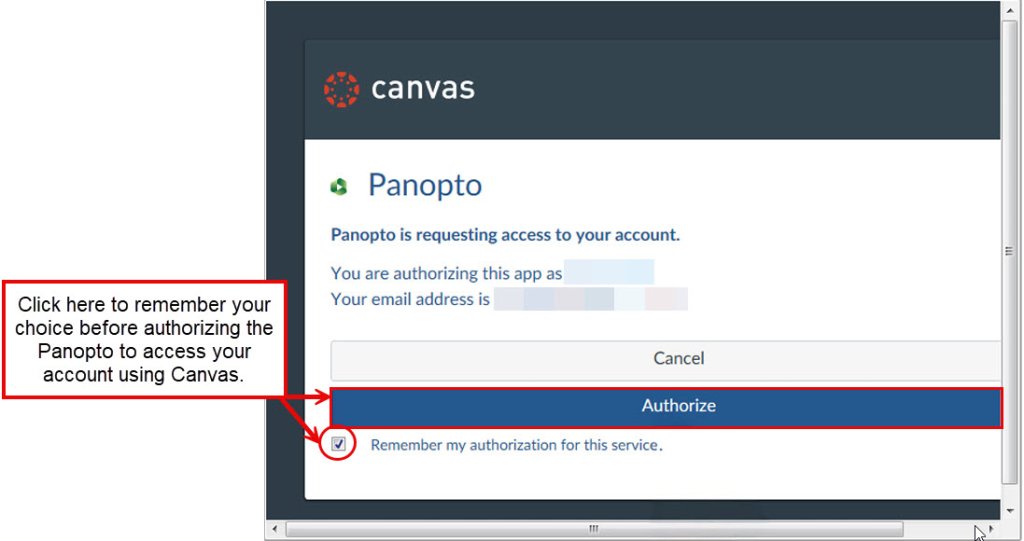
 You may be prompted to authorize your Panopto account. Select Remember my authorization for this service and then click on the Authorize button:
f
Using the Panopto Tool in the Canvas RCE Text Editor
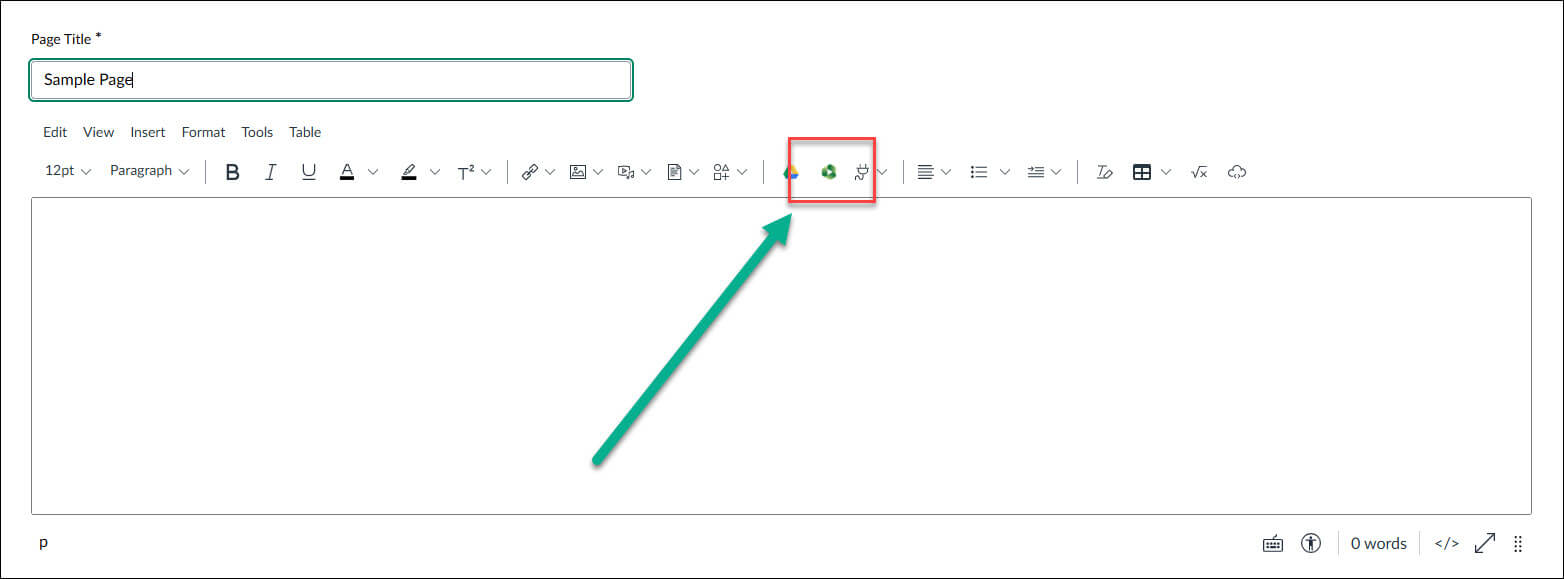
Anywhere text can be added to a Canvas course, Panopto videos can be added as well. In the RCE text editor, click the Panopto icon and videos can be selected, uploaded, or created and then embedded into the resulting text box. This process can be used by students in Discussions and Assignments that allow for text entry responses and by instructors on Pages, Discussions, and Assignment/Quiz instructions:
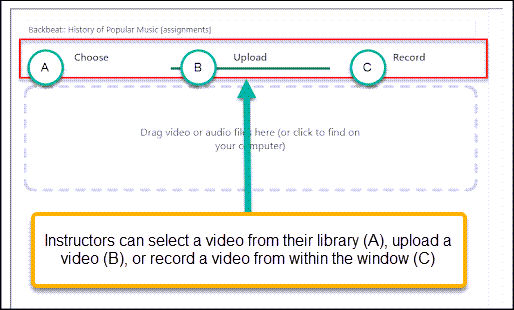
After you select Panopto from the RCE editor, you will be able to choose, upload, or record a video from the pop-up. The video will then be automatically embedded onto the page for student viewing:
NOTE: All videos that are uploaded or created from the RCE text editor Panopto icon will also be added to the Canvas course’s Panopto folder.
For detailed tutorials and support on using your video repository account, please visit Panopto support (https://support.panopto.com/s/).
For Canvas or Panopto help, contact the NMC Technology Helpdesk at 231-995-3020