Mar 11, 2025
When adding images to your materials, it is important to ensure that images that convey important information have appropriate text alternatives or descriptions. Having a description of an image will ensure that they are accessible to everyone. Alternative text (alt...
Feb 26, 2025
Descriptive links help all people, especially those using screen readers, understand where a link will take them without needing extra context. Instead of generic phrases like “click here” or “link” or “read more”, descriptive links...
Feb 11, 2025
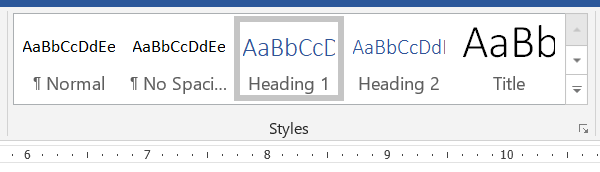
Headings & Structure When creating headings, always use the built-in heading styles in Word, Google Docs, and the Canvas Rich Content Editor to organize content hierarchy. In PowerPoint, make sure to use an accessible template, add a title to every slide, and...
Jan 14, 2025
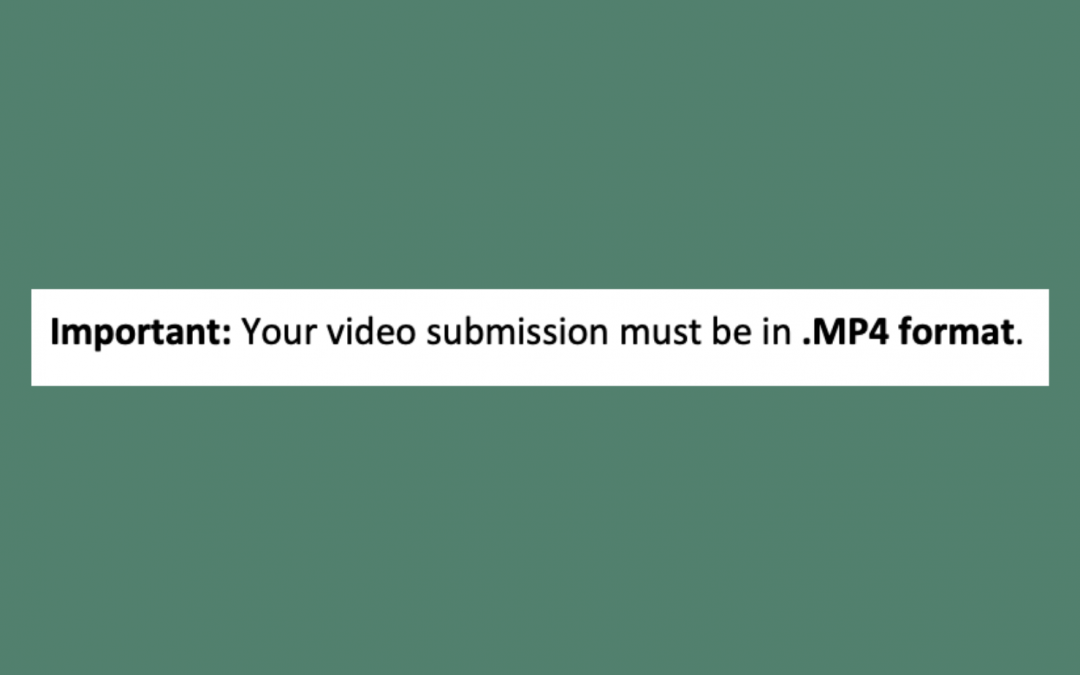
Text Styles: Use underlining only for hyperlinks to assist people who are color blind in differentiating them from regular text. Similarly, avoid using text color and highlighting alone for emphasis as they may be challenging to distinguish. Some screen readers do not...

Nov 6, 2024
Did you know that NMC has a site license to Texthelp’s literacy/accessibility support tool Read&Write? It is available to everyone – faculty, staff, and students. Look for the purple puzzle piece icon when using Chrome to turn on the tools. You can...